Track and control agent call activity easily in Ainvox means you can monitor everything your agents do on calls from one simple dashboard. You can see live calls, check call duration, review call history, listen to recordings, and view agent notes. This helps you control call quality, improve agent performance, and ensure smooth customer communication without any complexity.
Calls Page Overview
On the Calls Page, you can see the complete call history, including:
-
Live Calls
-
Not Connected Calls
-
Completed Calls
This gives you full visibility into all calls handled by your agents.
Step 1 : Click on calls page
Log in to your Ainvox dashboard. From the left-side menu, click on Calls. This section shows all agent call activity in one place.
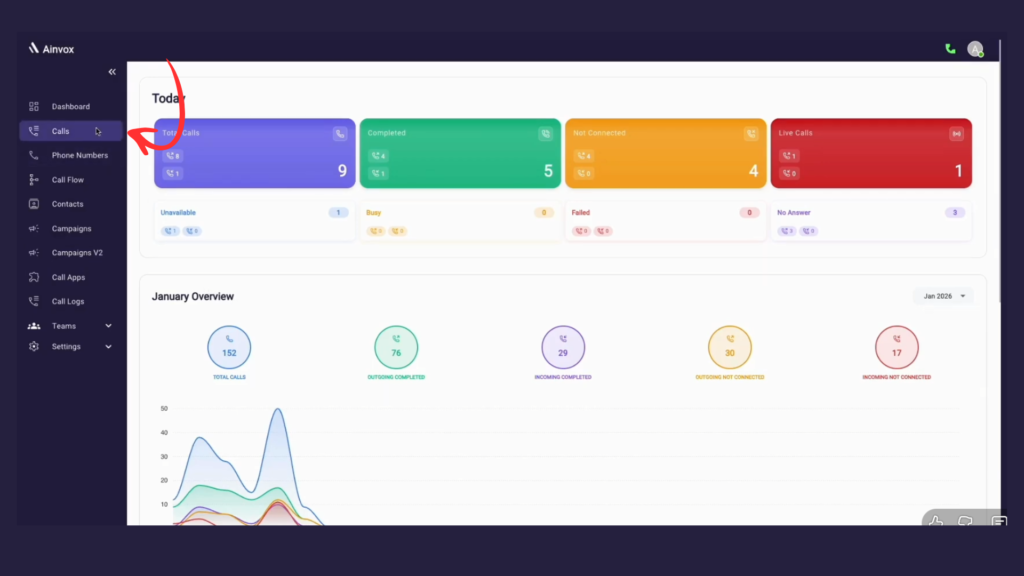
Ainvox Calls Page overview for tracking and managing agent call activity in one place.
Step 2 : all call activity
All inbound and outbound call activity is available on the Calls page, showing complete call details, status, recordings, and agent information in one place.
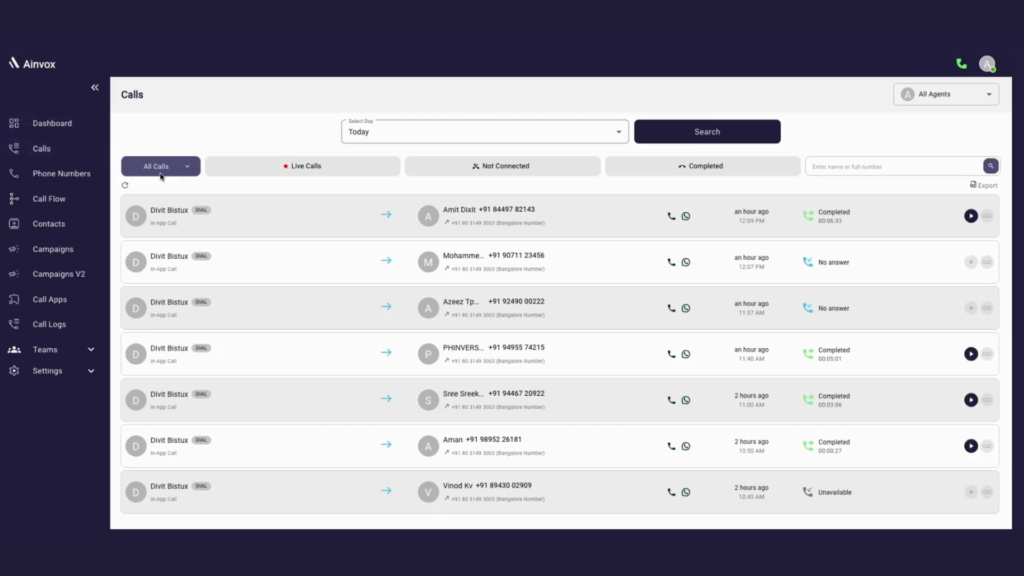
Ainvox Calls Page overview for tracking and managing agent call activity in one place.
Step 3 : live calls
This helps you track active conversations in real time and monitor agent call handling easily.
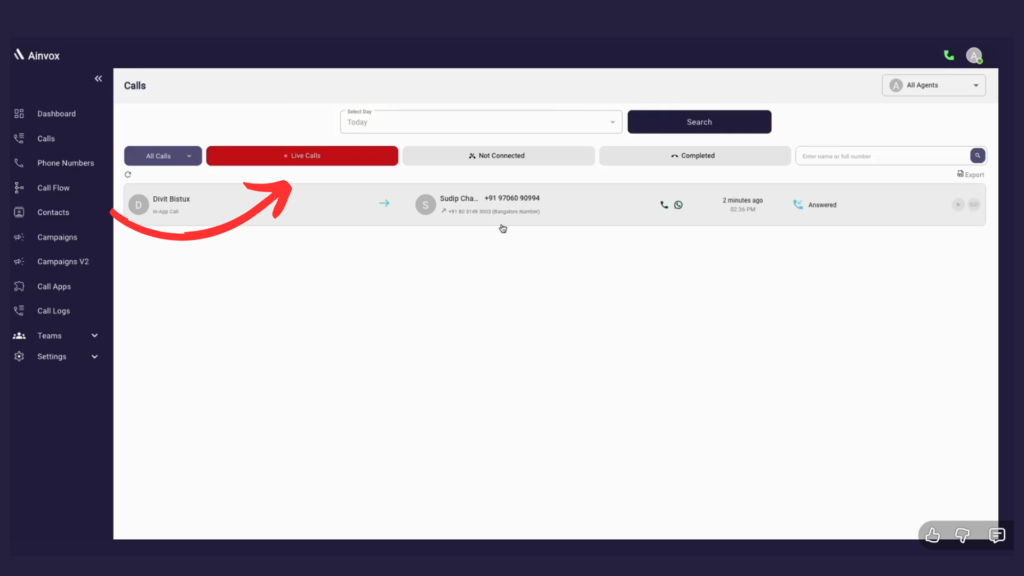
Ainvox Calls Page overview for tracking and managing agent call activity in one place.
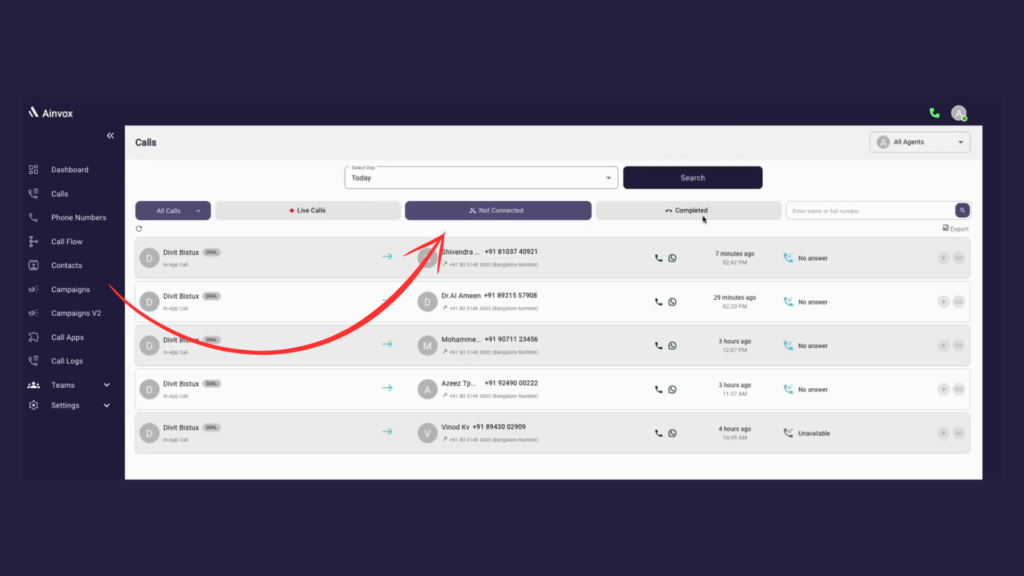
Step 4 : not connected
Not Connected details show calls that were not successfully completed, such as no answer or unavailable. You can view agent name, customer number, call time, and status to easily track missed call attempts.
Ainvox Calls Page overview for tracking and managing agent call activity in one place.
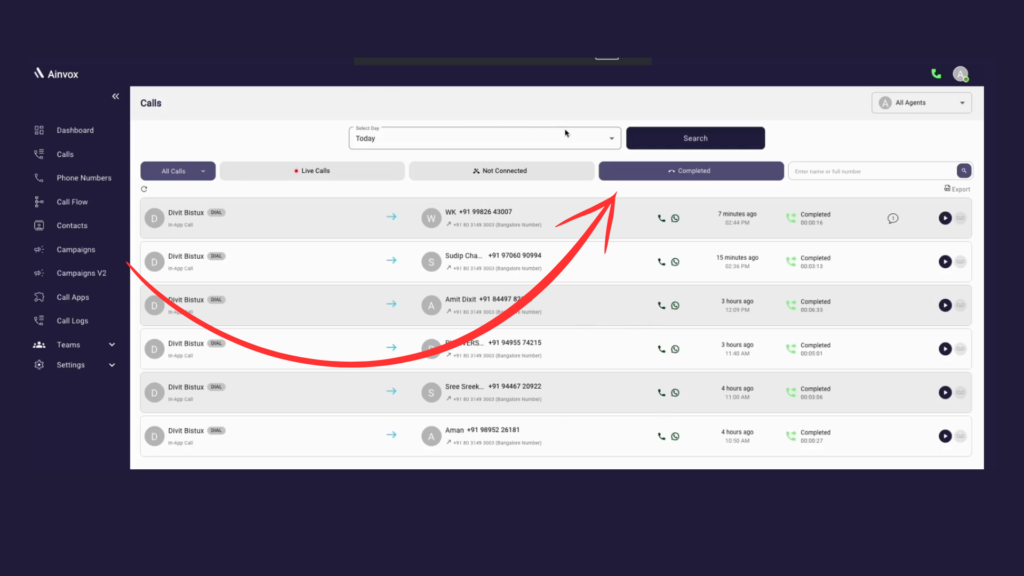
Step 5 : Completed
Completed Calls show all calls that were successfully connected and finished. Each entry provides complete visibility into the call activity for easy tracking and review.
Ainvox Calls Page overview for tracking and managing agent call activity in one place.
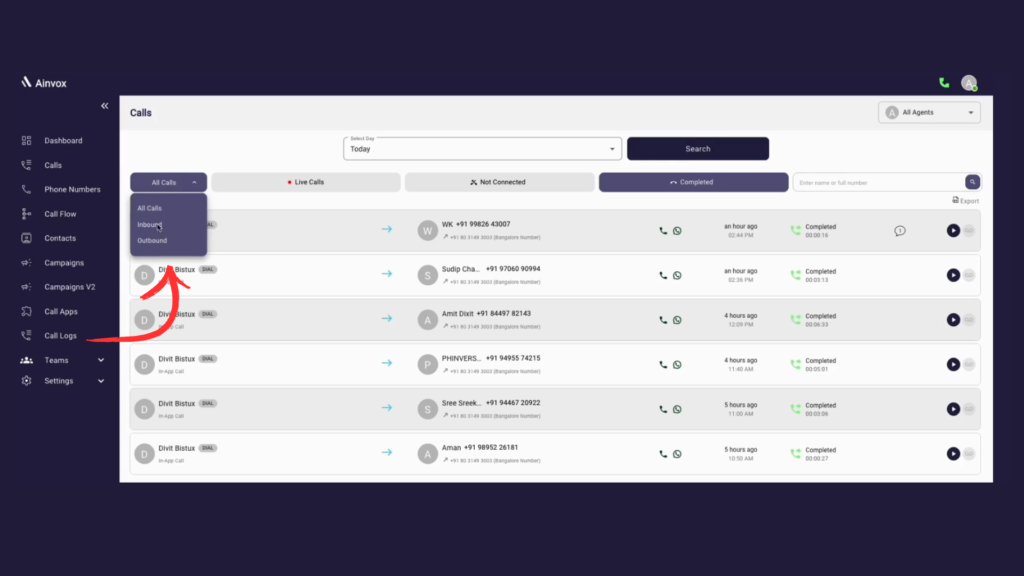
Step 6 : All Calls
The All Calls view shows a complete log of every call made and received on the system, including Inbound, Outbound, Live, Not Connected, and Completed calls, with filters to easily view only Inbound or Outbound calls—all in one place.
Ainvox Calls Page overview for tracking and managing agent call activity in one place.
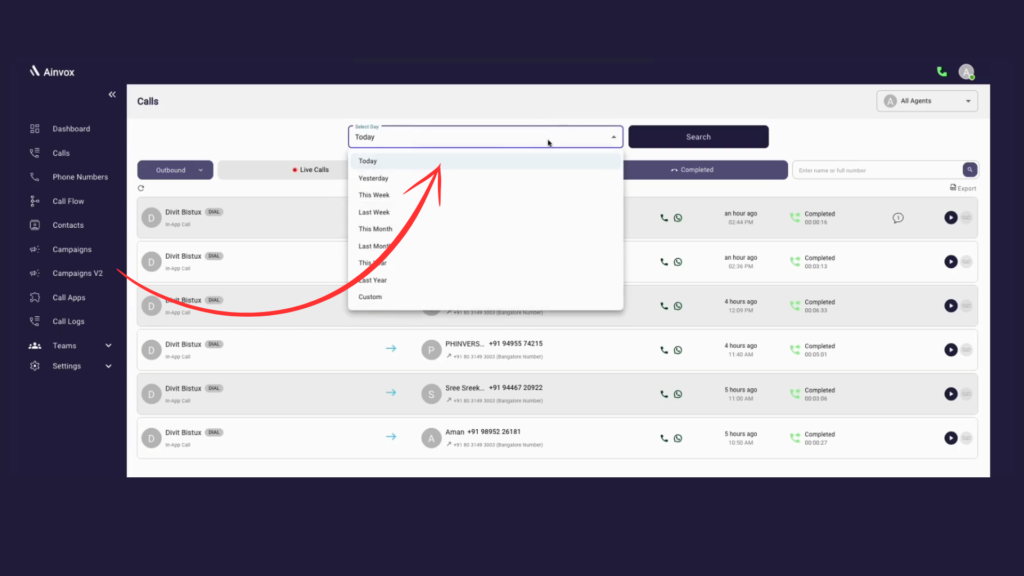
Step 7:Call Details
The Selected Date filter lets you quickly view call logs for a specific time period. Choose a preset range or set a custom date to analyze call activity with precision.
Ainvox Calls Page overview for tracking and managing agent call activity in one place.
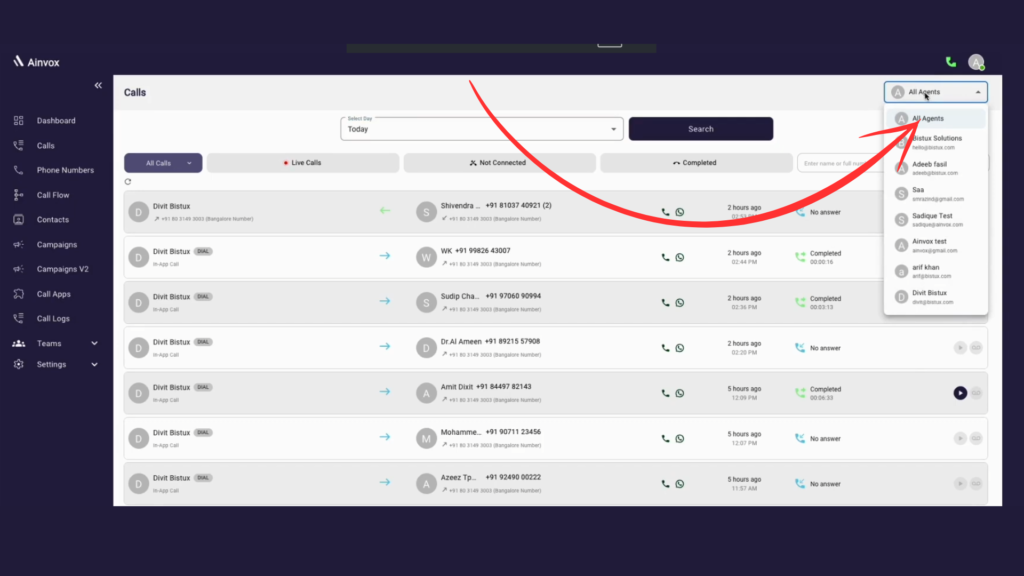
Step 8 : All Agents – Details
The All Agents filter allows you to view and manage call activity across the entire account or for a specific agent. It helps supervisors and admins track performance, monitor calls, and review agent-wise activity from one place.
Ainvox Calls Page overview for tracking and managing agent call activity in one place.
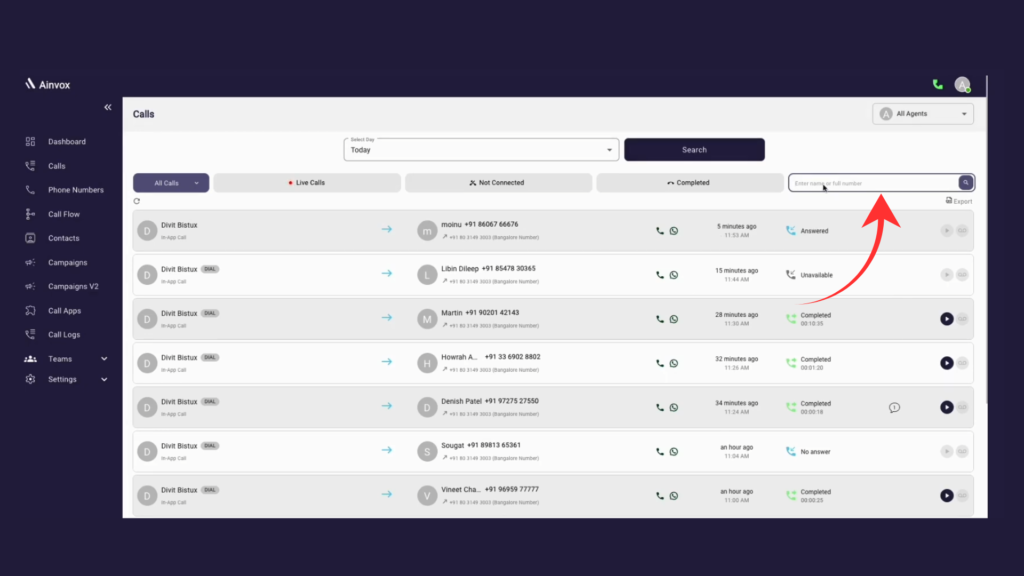
Step 9 :enter name or number
Quickly search and filter call logs by entering the customer name or complete phone number to instantly find specific call details.
Ainvox Calls Page overview for tracking and managing agent call activity in one place.
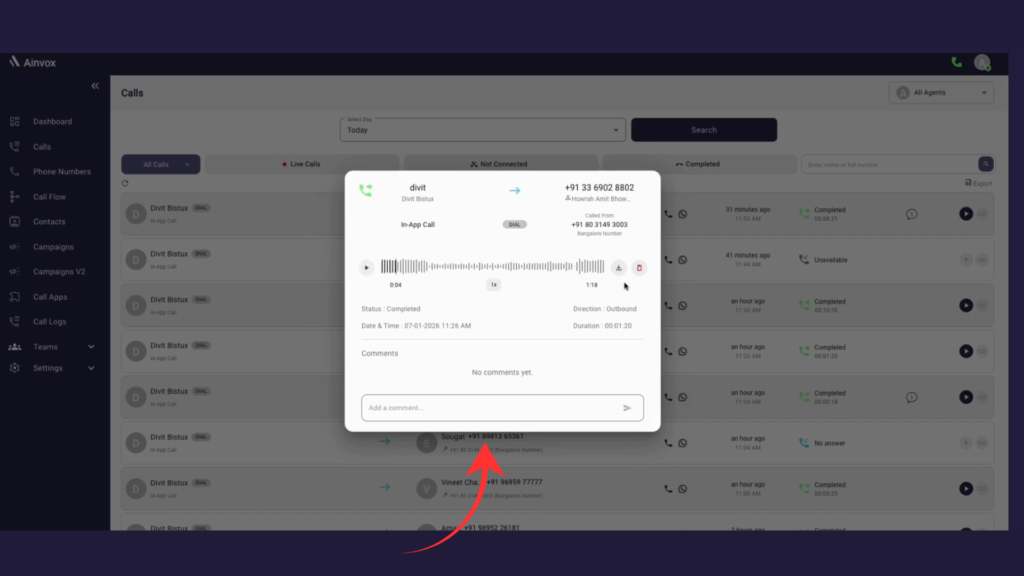
Step 10 : Click on any call entry in the Calls list to open Call Details.
Ainvox Calls Page overview for tracking and managing agent call activity in one place.
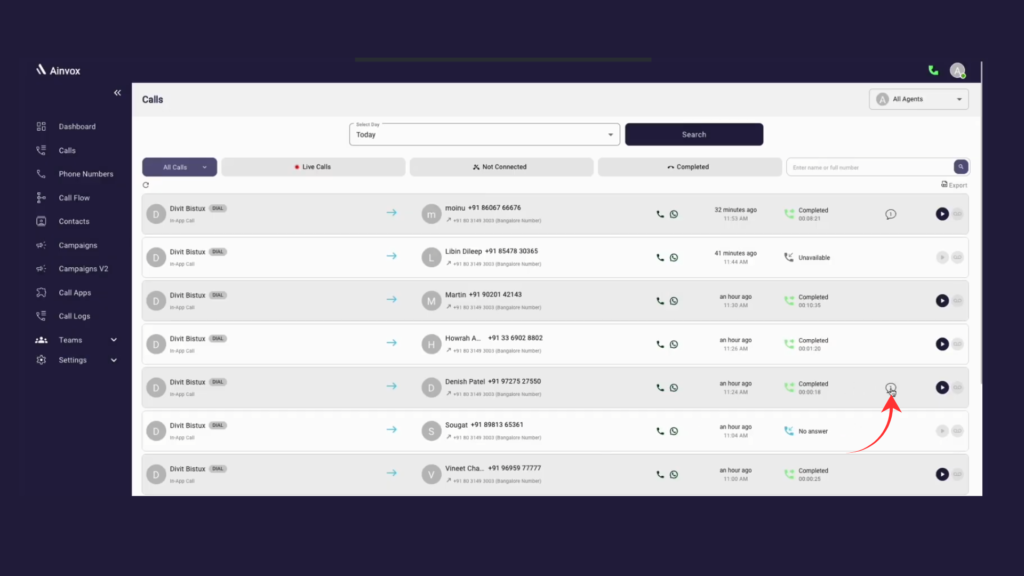
Step 11 : Comments in Bubble View
Click the comment bubble to view all notes and comments for this call.
Ainvox Calls Page overview for tracking and managing agent call activity in one place.
Step 12 : click to call option
Use this option to instantly connect with the customer without leaving the page.
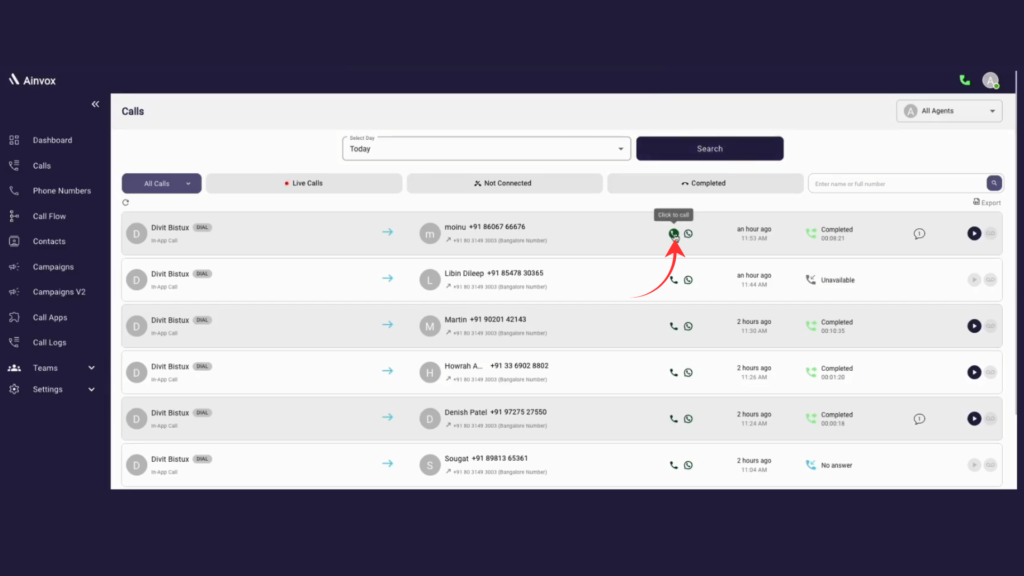
Ainvox Calls Page overview for tracking and managing agent call activity in one place.
Spet 13 : click to whatsapp icon
Use this option to send a WhatsApp message directly to the customer’s number.
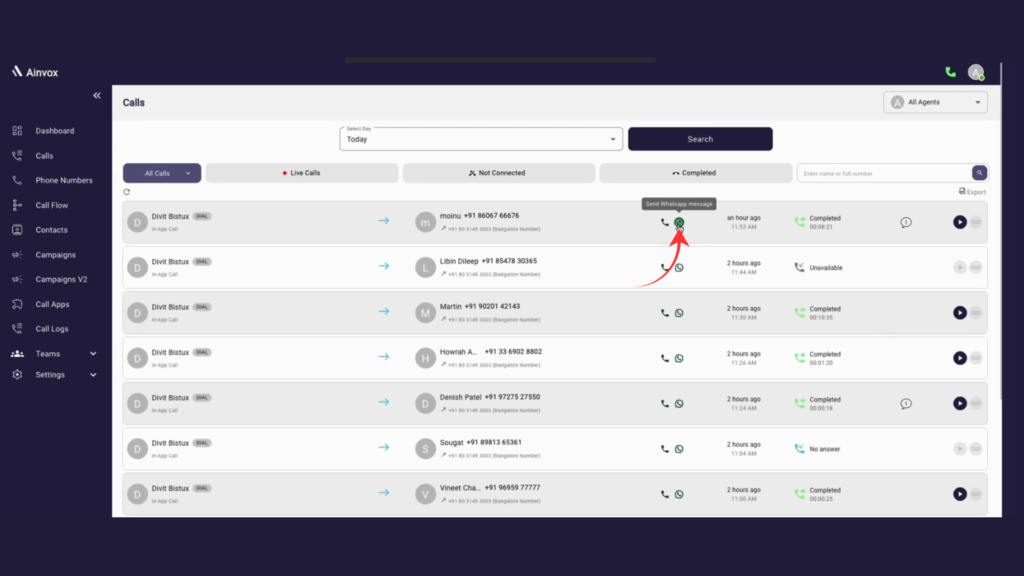
Ainvox Calls Page overview for tracking and managing agent call activity in one place.
Step 14 : click to export option
Easily download call data in CSV format to use in Excel or other tools.
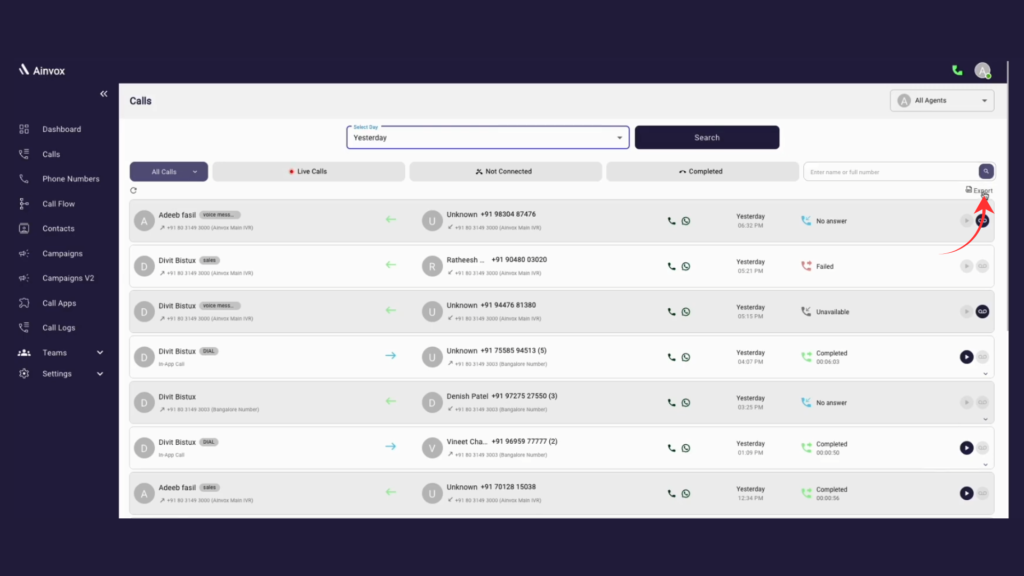
Ainvox Calls Page overview for tracking and managing agent call activity in one place.