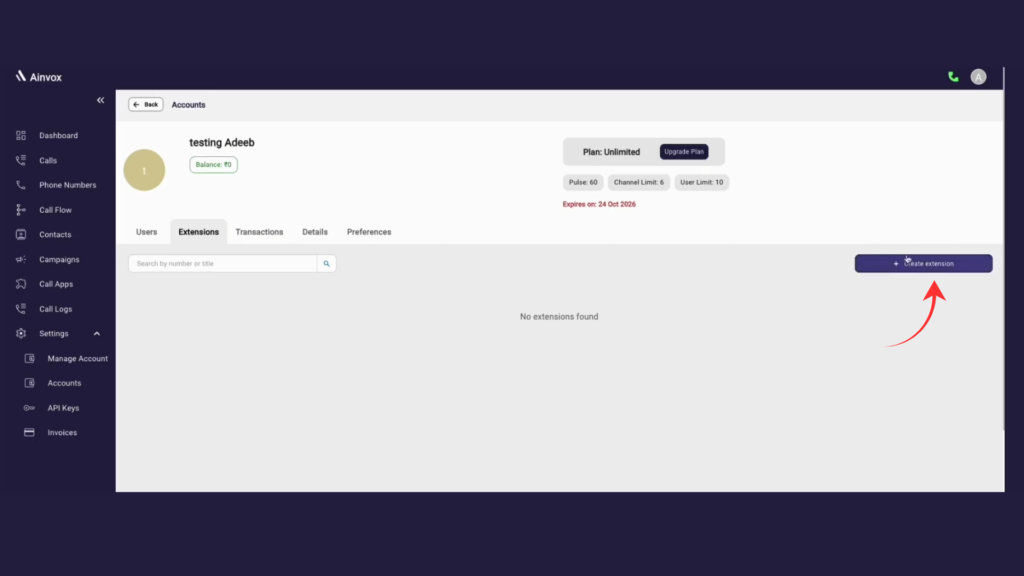
To manage an account, go to the Manage Account section from the sidebar. Here you can view account details such as balance, plan information, user limit, and expiry date. In the Users tab, you can add, edit, assign roles, or delete users. Other tabs allow you to manage extensions, view transactions, and update account settings.
Step 1 manage account
The Manage Account section allows administrators to manage users and account settings. Here you can view account details such as balance, subscription plan, user limit, channel limit, and expiry date. In the Users tab, you can see all added users with their roles, email IDs, and phone numbers. You can also add new users, edit user details, change roles, or delete users. Other tabs like Extensions, Transactions, Details, and Preferences help manage extensions, view transactions, and update account settings.
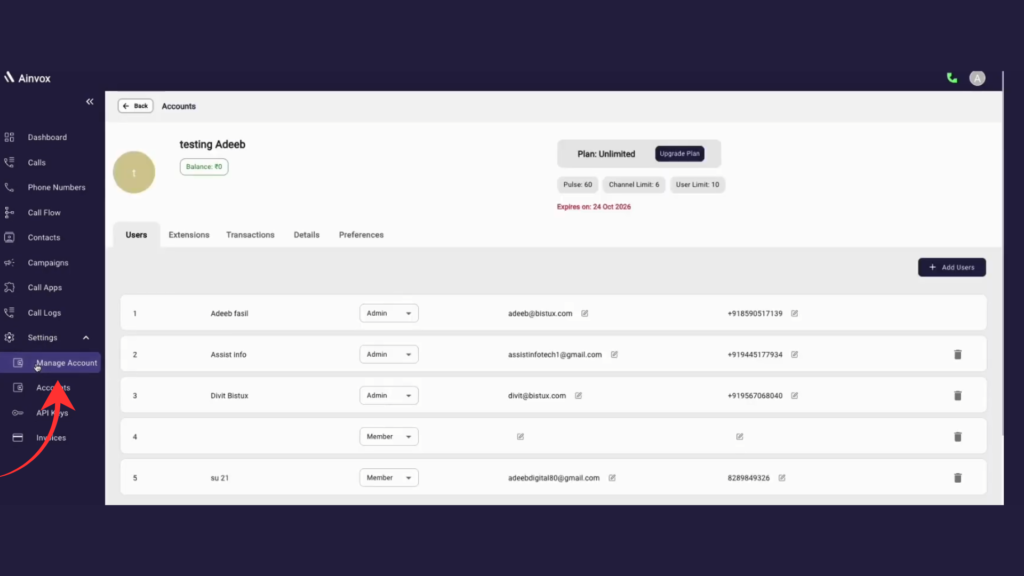
Step 2 click on add user
The Add Users button allows you to add a new user to the account. You can enter the name, email, phone number, and assign a role (Admin or Member). Once added, the user will appear in the users list and can access the system based on their role.
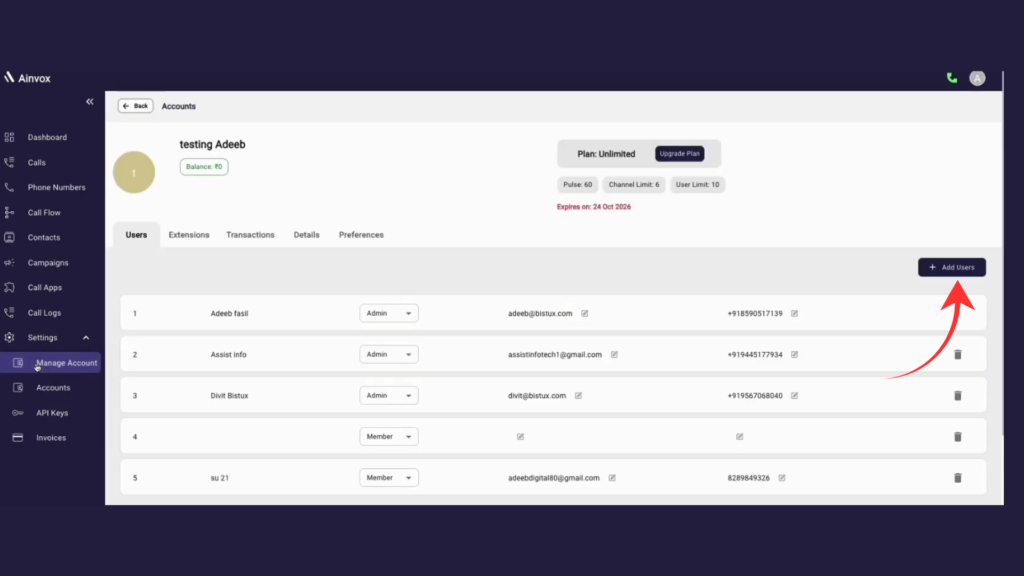
Step 3 fill in the requared details
To create a new user, enter the First Name, Last Name, Email, Password, and Phone Number. Then confirm the details by checking the confirmation box and click Create & Add User to add the user.
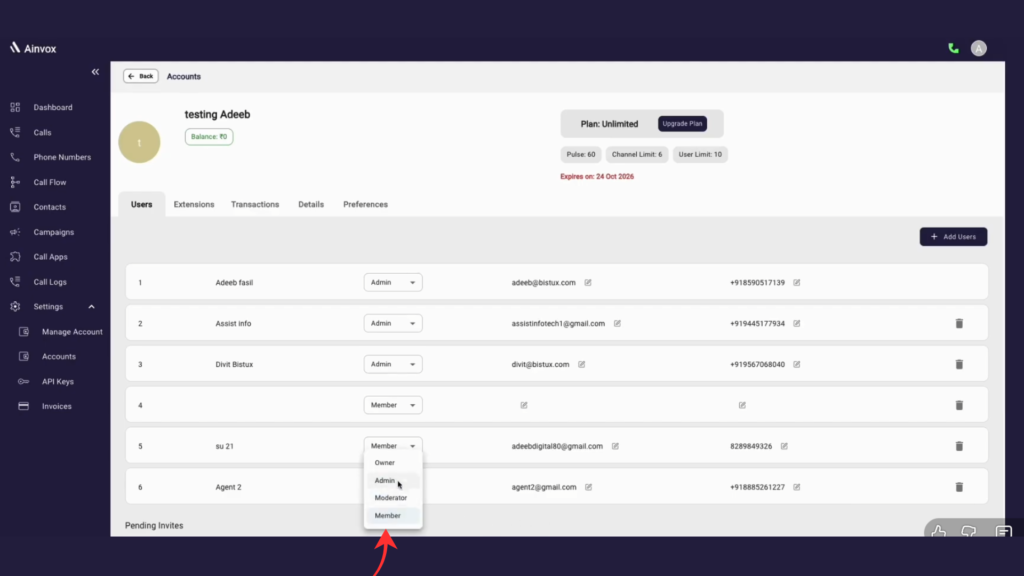
Step 4 switch to users role
The User Role option allows you to change a user’s role in the account. By clicking the role dropdown next to a user, you can switch between roles such as Owner, Admin, Moderator, or Member. Each role has different access permissions within the system. This helps administrators control what actions each user can perform.
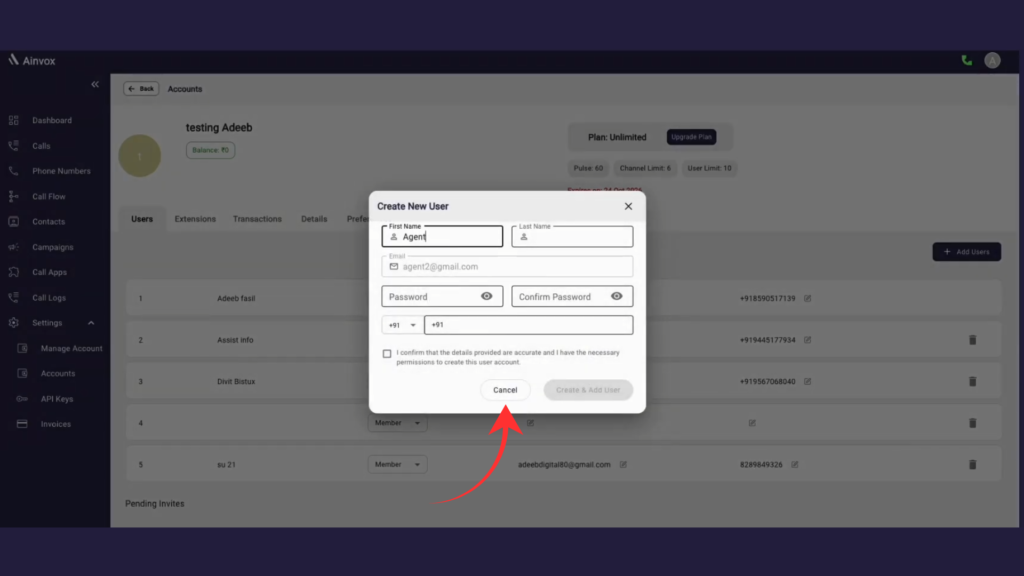
Step 5 create a new extention
The Create Extension option allows you to add a new call extension for users or departments. Go to the Extensions tab and click Create Extension. Then enter the required details such as the extension number, name, and assigned user. Once created, the extension can be used to manage and route internal calls easily.